Getting Started
Provisioning on Control Hub
Use the Webex Control Hub to provision Agentic Apps for your organization. This includes configuring user access and authentication, and defining governance controls to manage which agentic capabilities are available to organizational users.
Users acknowledge and agree that they bear full responsibility for understanding, complying with, and managing all aspects of the liability framework related to their use of MCP applications.
This guide is for administrators only. This includes configuring user access and authentication, and defining governance controls to manage which agentic capabilities are available to organizational users.
anchorAccessing your Agentic Apps
anchorIn Control Hub, go to Apps → Agentic Apps.
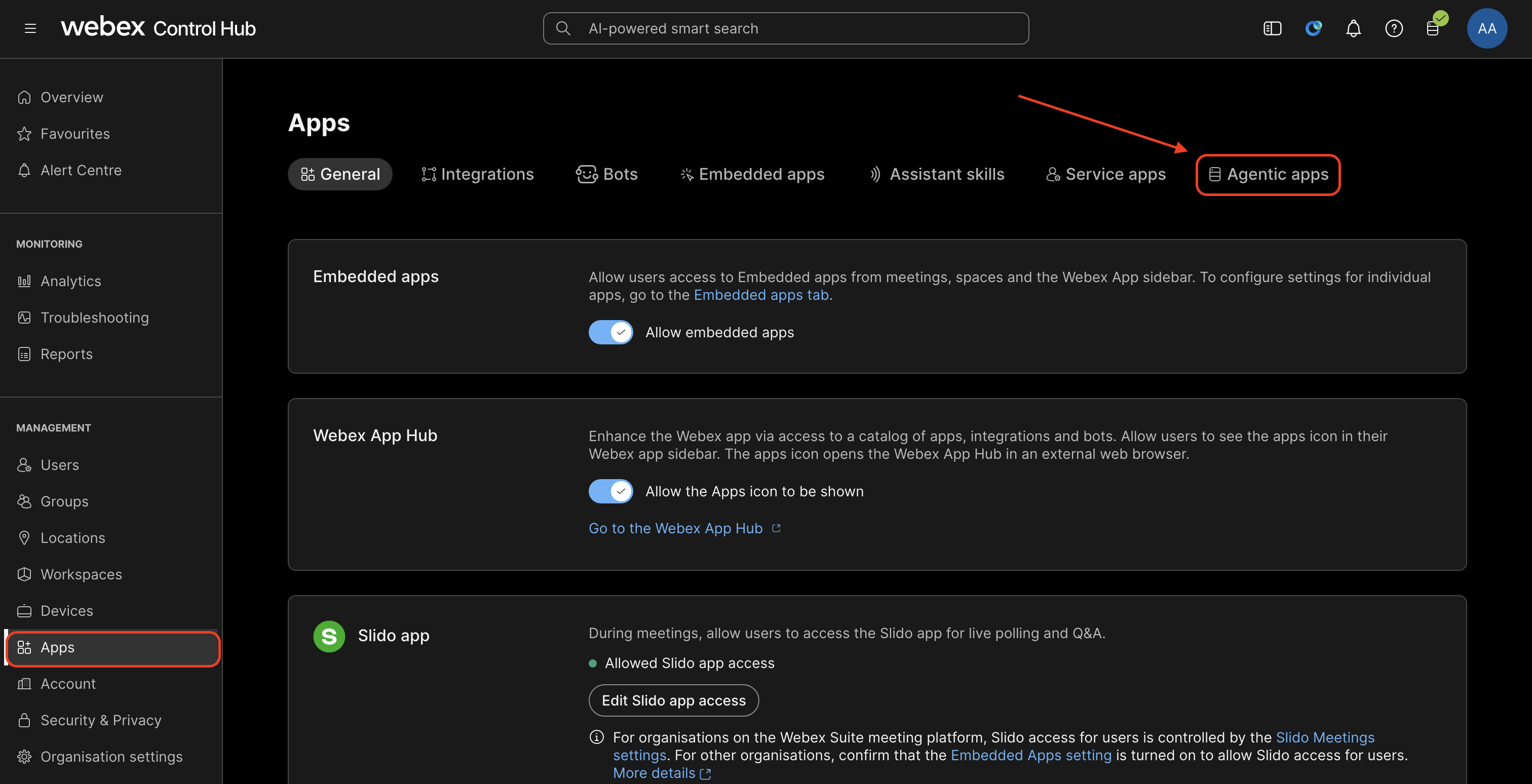
This page lists all public Agentic Apps along with the private apps which have been onboarded by users belonging to your organization.
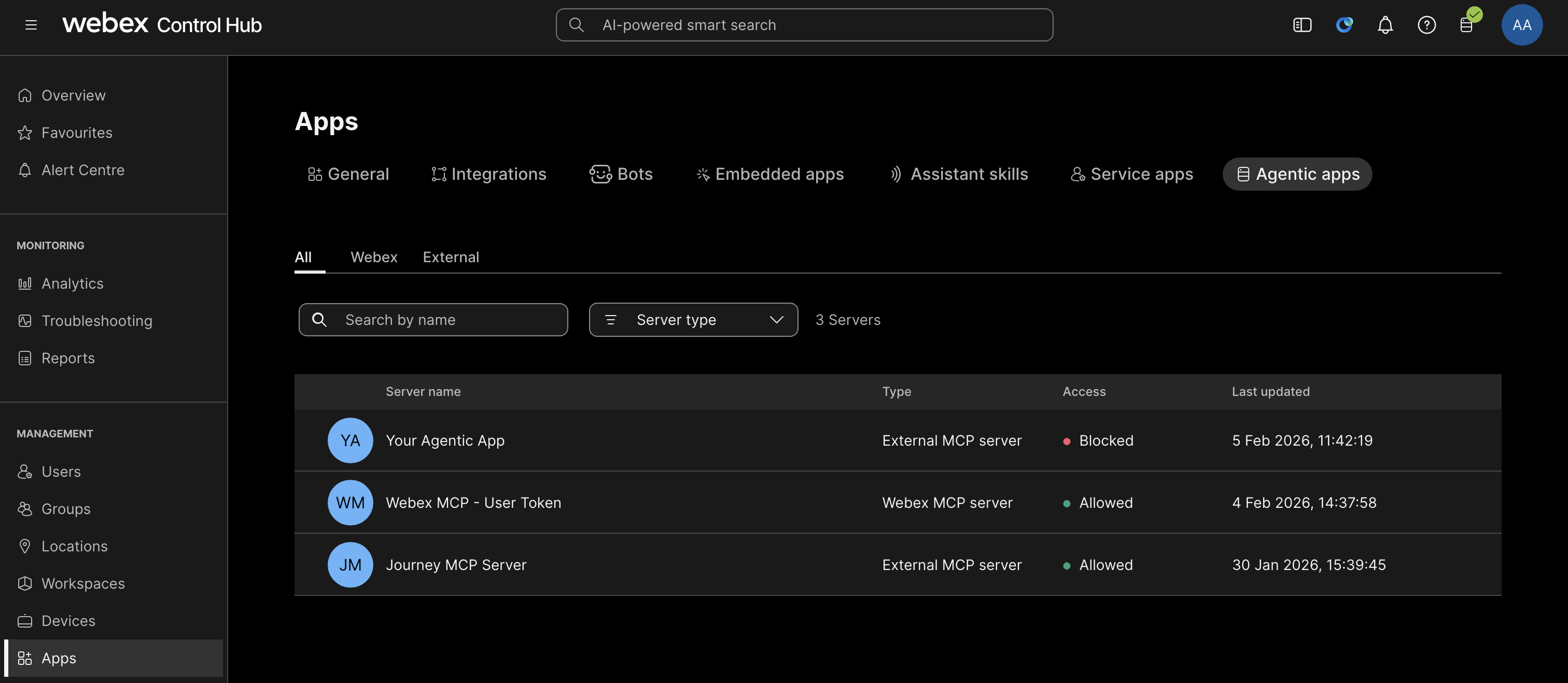
anchorGeneral
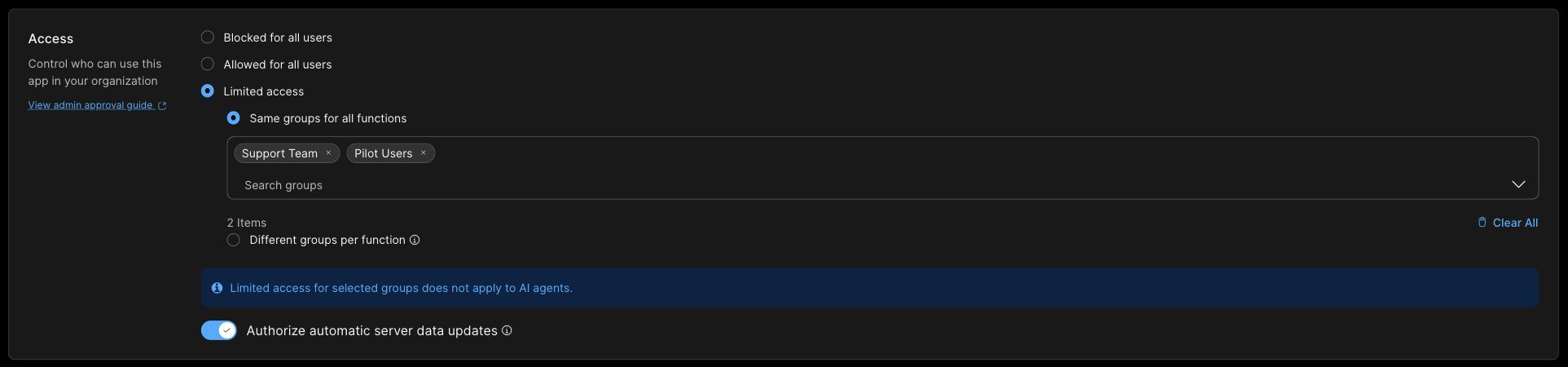
anchorSelect an app and open the General tab. Under Access, choose who can use the app:
- Blocked for all users: Block access for your organization.
- Allowed for all users: Allow access for your organization.
- Limited access: Limit discovery of an MCP server's enabled functions to users in selected groups. You can use the same groups for all functions or assign different groups per function.
Select Save to apply your changes. For group configuration, follow Group-Level Access.
Authorize automatic server data updates - When enabled, updates to the server's name, description, URL (within the same domain), transport type, or other metadata do not require re-authorization before they take effect. However, the admin will see an indication that changes have occurred and can re-authorize at their discretion.
Group-Level Access
Use Limited access to choose which groups can discover an MCP server's enabled functions. For example, you can select a support team and a pilot group, or give individual functions different audiences. The MCP server's own authentication and authorization controls still apply when a function is invoked.
Before configuring access, make sure the groups exist in your organization. To create a Webex group, go to Management > Groups in Control Hub. Keep group membership aligned with the users who should have access.
Same groups for all functions
- Go to Apps > Agentic Apps, select the MCP server, and open General.
- Under Access, select Limited access.
- Select Same groups for all functions.
- Open Search groups and select the groups that should discover the enabled functions. Selected groups appear above the search field; remove a group with its × control or use Clear All to remove the selection.
- Select Save.
Different groups per function
- On the MCP server's General tab, select Limited access.
- Select Different groups per function, then Save.

- Open Tools, Resources, or Prompts, depending on the function you want to configure.
- In the function's Group access column, select Edit. For example, select Edit in the List Flows row to configure that tool's groups.
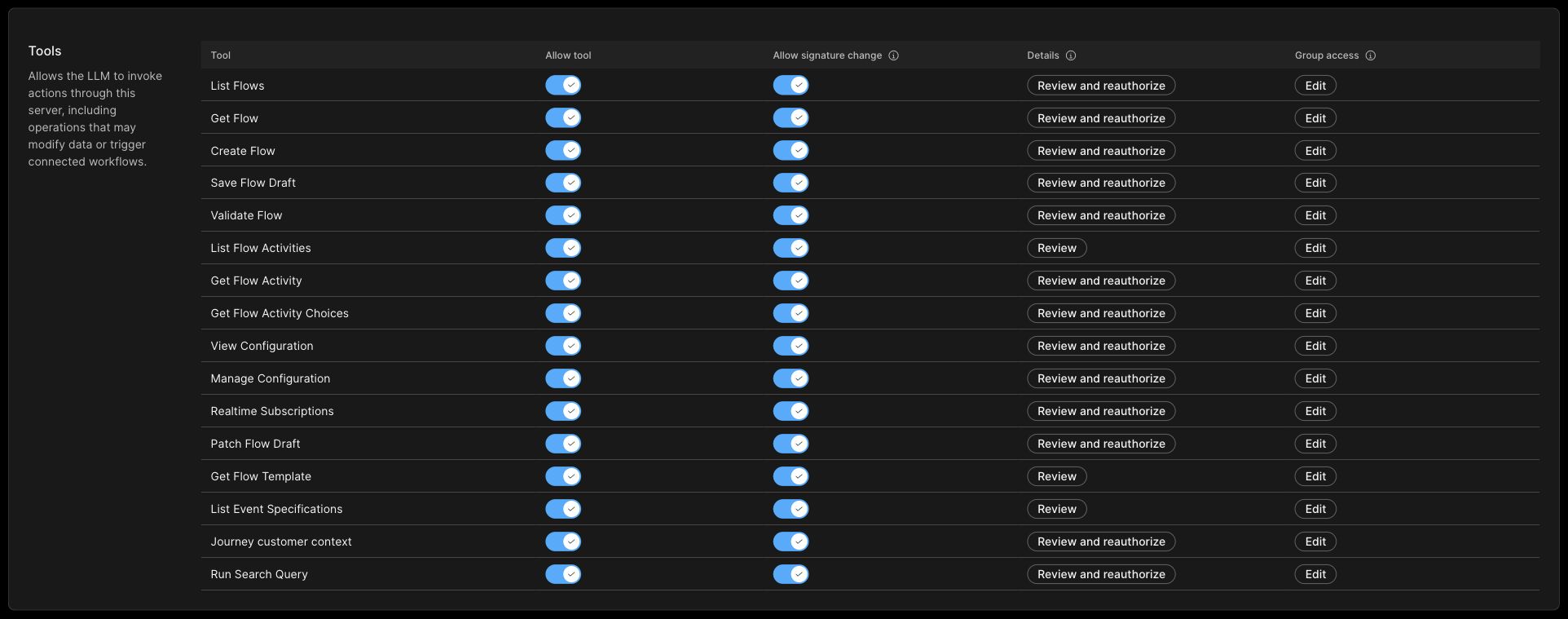
- On the function's Edit group access screen, open Search groups and select the groups that should discover that function.
- Select Save to apply the function's group selection. Use Cancel to leave without saving. Repeat for each enabled function that users should be able to use.
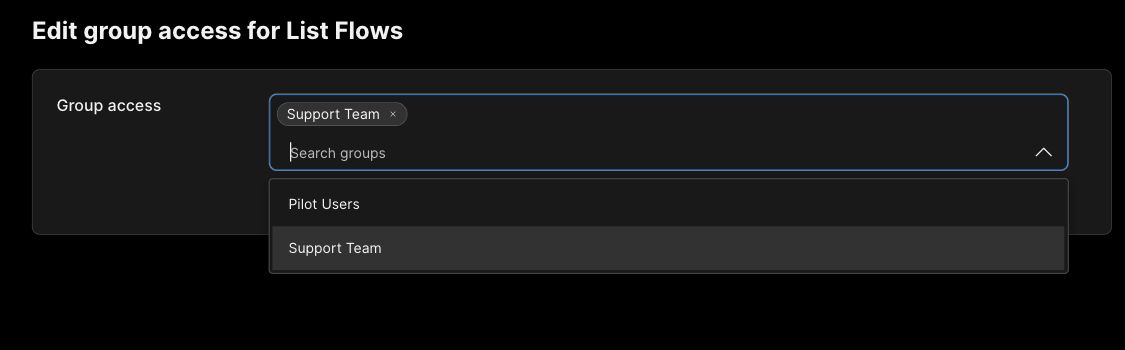
In this mode, a user must belong to at least one group assigned to the function for it to appear in their enabled-function discovery. A function with no groups assigned has no matching users, even if the function is enabled. Saving an empty selection after clearing its groups removes that function from group-based discovery. Assign at least one group to every enabled function you want users to discover and use.
After saving, reopen General and confirm that Limited access and the intended group mode remain selected. For the shared-group mode, check the selected groups. For per-function assignments, return to Tools, Resources, or Prompts, then select the function's Edit control in the Group access column to confirm its saved groups. If Edit is disabled, confirm that you saved Different groups per function on General first.
Group access controls the audience; it does not enable a disabled function. Review the function's enablement settings in Capabilities Configuration.
For MCP actions in Webex AI Agent Studio, group-level access is not supported; tool access is managed at the organization level.
anchorAuthentication
anchorCisco official servers are automatically configured. You should update the authentication settings mentioned below only if you need to change the default authentication.
The Authentication section asks users for details according to the configuration set in the Developer Portal. Supported methods:
| Method | What to provide |
|---|---|
| OAuth 2.0 – Client Credentials | Client ID, Client Secret, Authorization Server URL, Token Endpoint Auth Method, Scope |
| OAuth 2.0 – Authorization Code | Client ID, Client Secret, Registration Endpoint, Authorization Endpoint, Authorization Server URL, Token Endpoint Auth Method, Scope |
| User Token | No input required |
| API Key | The API key |
| Custom Headers | Up to five (5) key–value pairs |
| Webex Service App | No credentials. Select the associated Service App and review its requested scopes. |
For OAuth 2.0 – Client Credentials, the Token Endpoint Auth Method can be client_secret_basic or client_secret_post. For OAuth 2.0 – Authorization Code, it can be none, client_secret_basic, or client_secret_post.
Webex Service App
This method is available only for eligible Webex-hosted MCP servers that offer Webex Service App authentication. The administrator does not enter a client ID, client secret, or token.
To select the method and review its scopes:
- In Apps > Agentic Apps, select the MCP server and open the Authentication tab.
- For Authentication type, select Webex Service App.
- Select the Service Apps page link shown with the associated Service App.
- Review the Service App details and requested scopes, then follow Full Admin Authorization of a Service App to complete the separate authorization step.
If the requested scopes change later, Control Hub indicates that reauthorization is required. Review the updated scopes before reauthorizing the Service App.
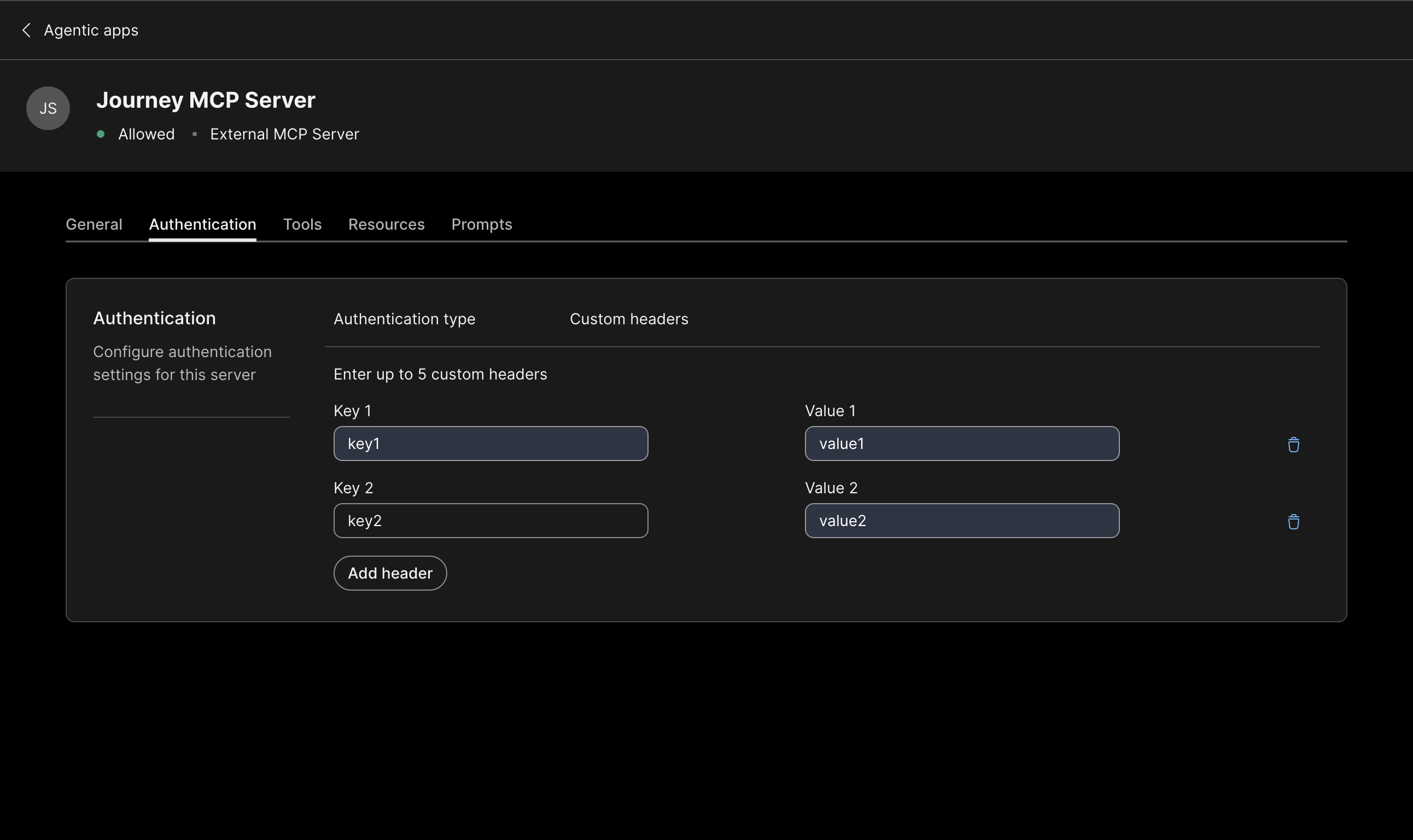
Custom Headers are configurable for all authentication types.
anchorCapabilities Configuration
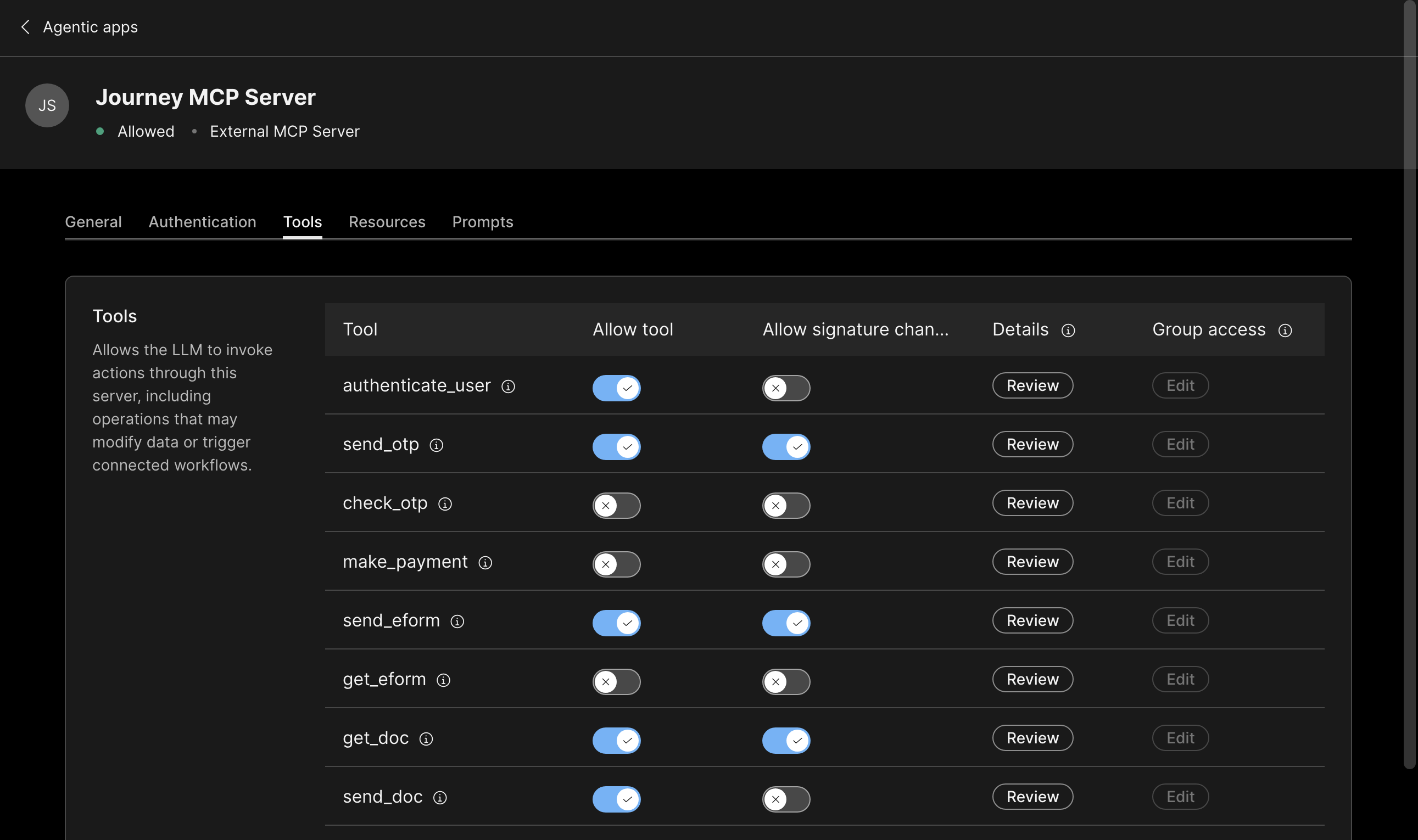
anchorFor MCP Servers, you will see three tabs - one for Tools, one for Resources and one for Prompts.
Tools
In the Tools section you can do the following:
- Enable tool: When a tool is enabled by the org admin, it becomes available to users on the client side. Users can discover and use the tool based on the access configured by the admin.
- Disable tool: When a tool is disabled by the org admin, it is no longer visible or available to users on the client side. This allows admins to restrict access to tools that should not be used within the organization.
- Signature change: When enabled, tools remain accessible to users even if the tool's schema changes after authorization. Org admins do not need to re-authorize each tool when its schema is updated by the developer. However, an indication is shown that the tool signature has drifted from what was originally approved.
- Review individual tool details: Admins can review the details of each tool, including its input schema, output schema, and annotations. This helps admins understand what data the tool accepts, what response it returns, and any additional metadata associated with the tool.
- Review and reauthorize schema changes: After an admin authorizes a server, any subsequent changes to tool schemas will require admin review and re-authorization. The admin must review the updated schema and re-authorize to update the approved baseline. This applies regardless of whether the tool signature change setting allows continued access - re-authorization is always needed to formally approve the new schema.
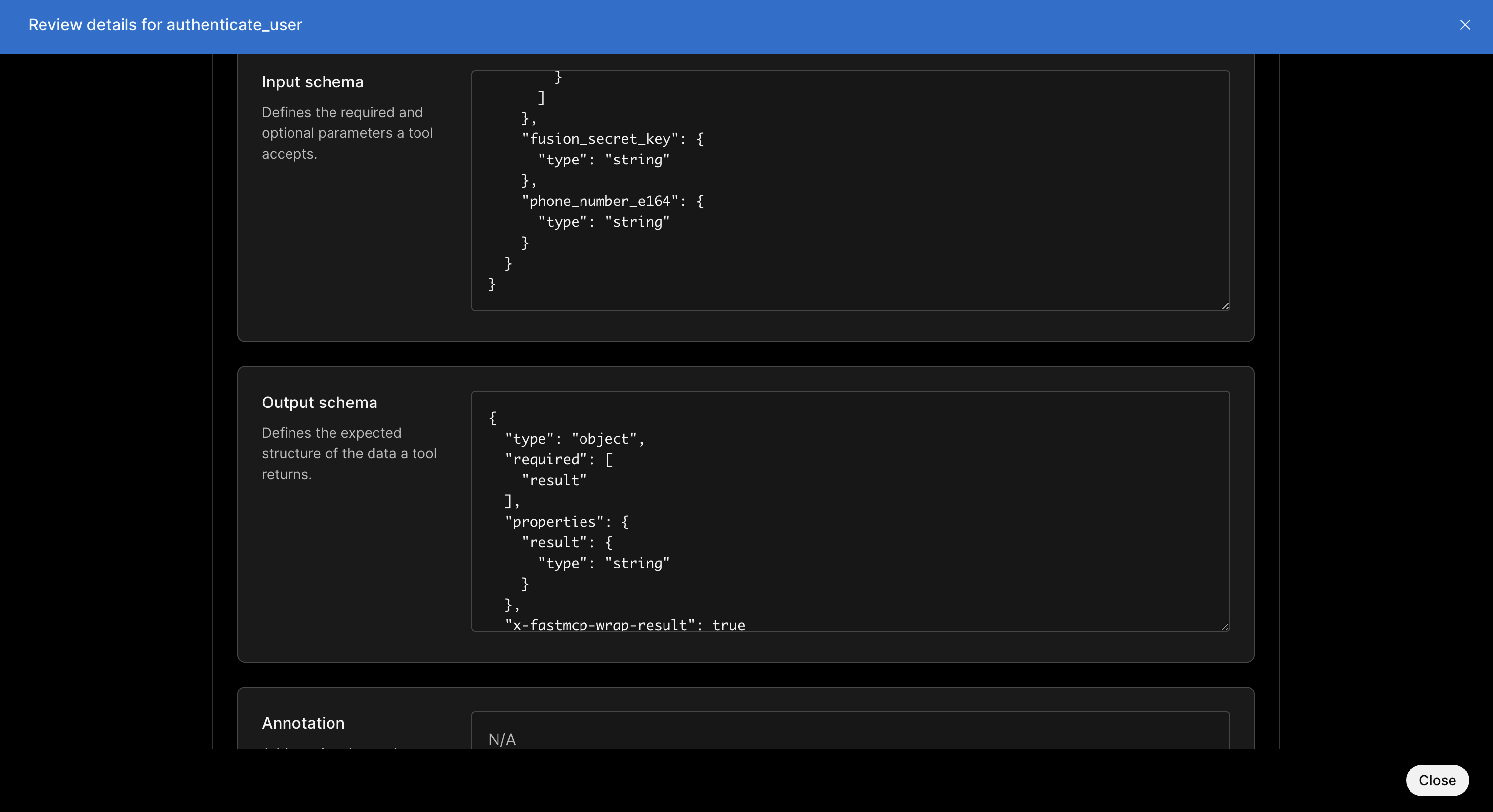
Similar functionalities are available in the Resources and Prompts pages.
anchorDeprecation Labels in Control Hub
anchorControl Hub supports end-to-end lifecycle management for MCP tools, resources, and prompts. Deprecated and Retired labels help administrators identify affected capabilities. Where available, Control Hub also displays retirement dates, replacement capabilities, and migration guidance so administrators can plan migrations before a capability is retired.
anchorRefreshing MCP Server Tools in Control Hub
anchorThe backend caches each MCP server's tool list for up to one hour. During this period, requests from Control Hub administrators or SDK clients return the cached list. After the cache expires, the next backend request retrieves the latest tools from the MCP server.